
This guide will help you do everything you need on the Orkestro portal, including booking a courier, tracking your deliveries, contacting support, and requesting refunds.
- Work with your orders
- Search for an order
- Book a courier
- Track a courier
- Chat with a courier support
- Request a refund
Work with your orders
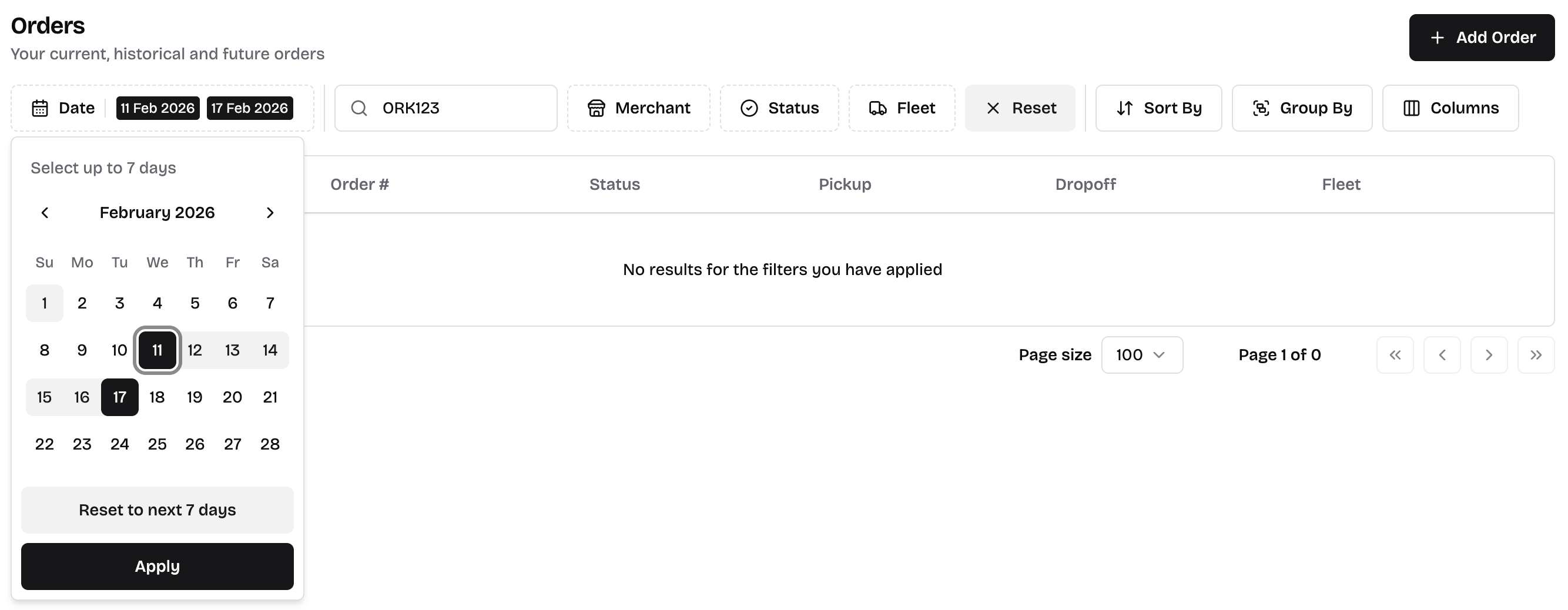
The Order page will list all your orders for the next 7 days by default. From there, you can filter, sort, and group the data according to your preferences.
If you want to see a list of orders from a different time, for example, a week from the past, or a specific day in the future, you can change the Date filter.
Search for an order
To find any order:
- Click on the Search option on the sidebar (or Cmd + K if you're on Mac, or Ctrl + K if you're on Windows).
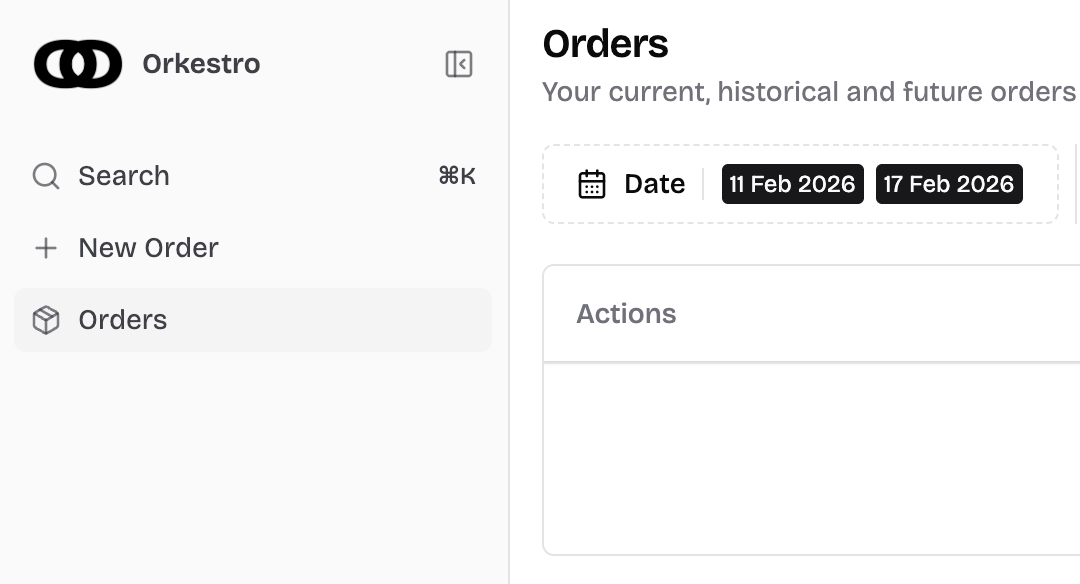
- Use the search input to find your order using one of the following:
- Order reference
- Courier booking reference
- Orkestro Order ID

- Choose the order from the list of results.
Book a courier
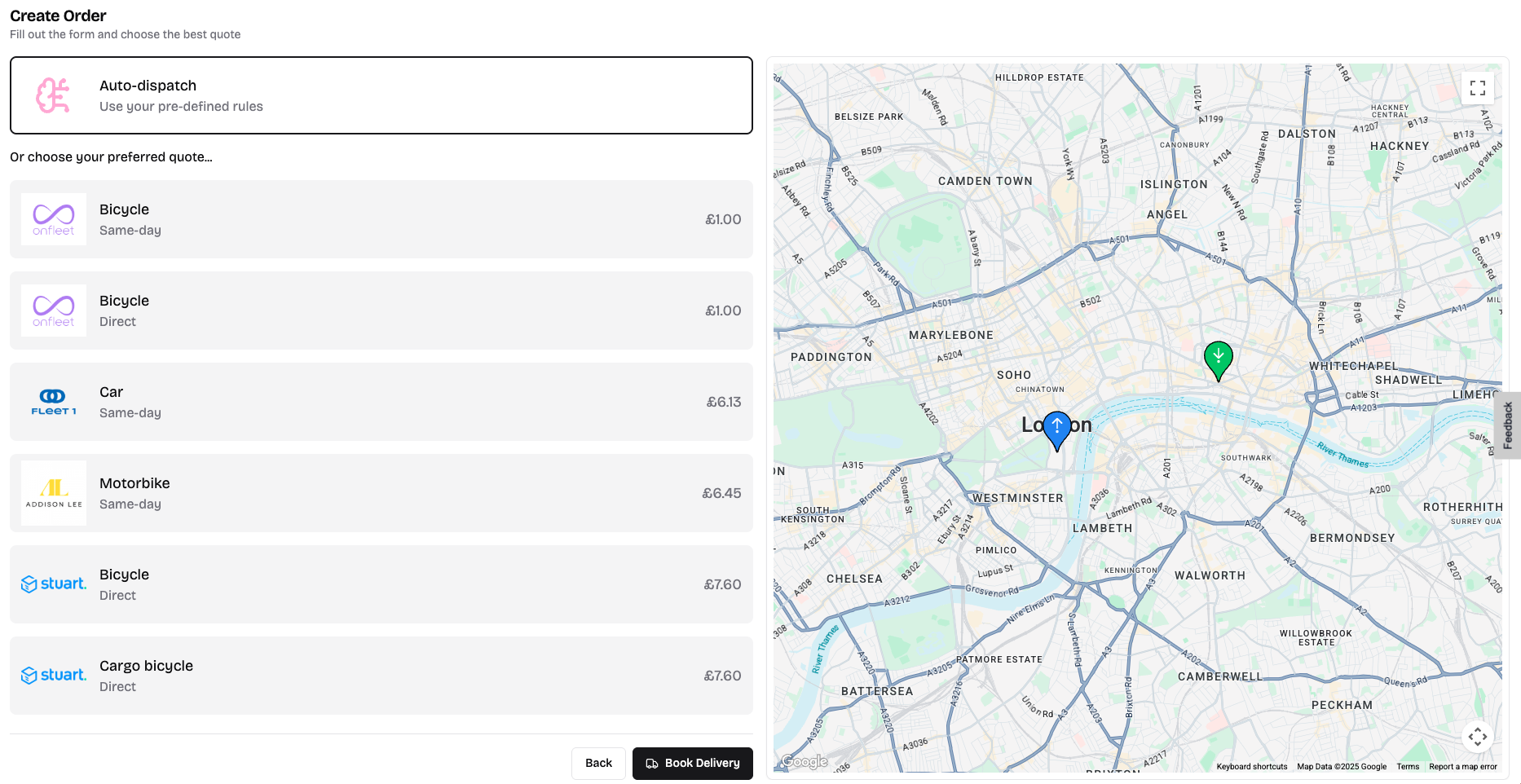
Once you’ve created an order, you can choose how it gets dispatched:
Automatic Dispatch: If you’ve set up dispatching rules, just select Auto-dispatch. The order will follow your pre-defined rules and be assigned to the appropriate courier.
Important: Auto-dispatch is only available when your order includes a basket value. If it’s missing, this option won’t appear.
Manual Dispatch: If you prefer to select a courier yourself, choose your preferred one from the list.
Tip: You can manage your connected couriers and dispatching rules in the Settings section of your portal.
Track a courier
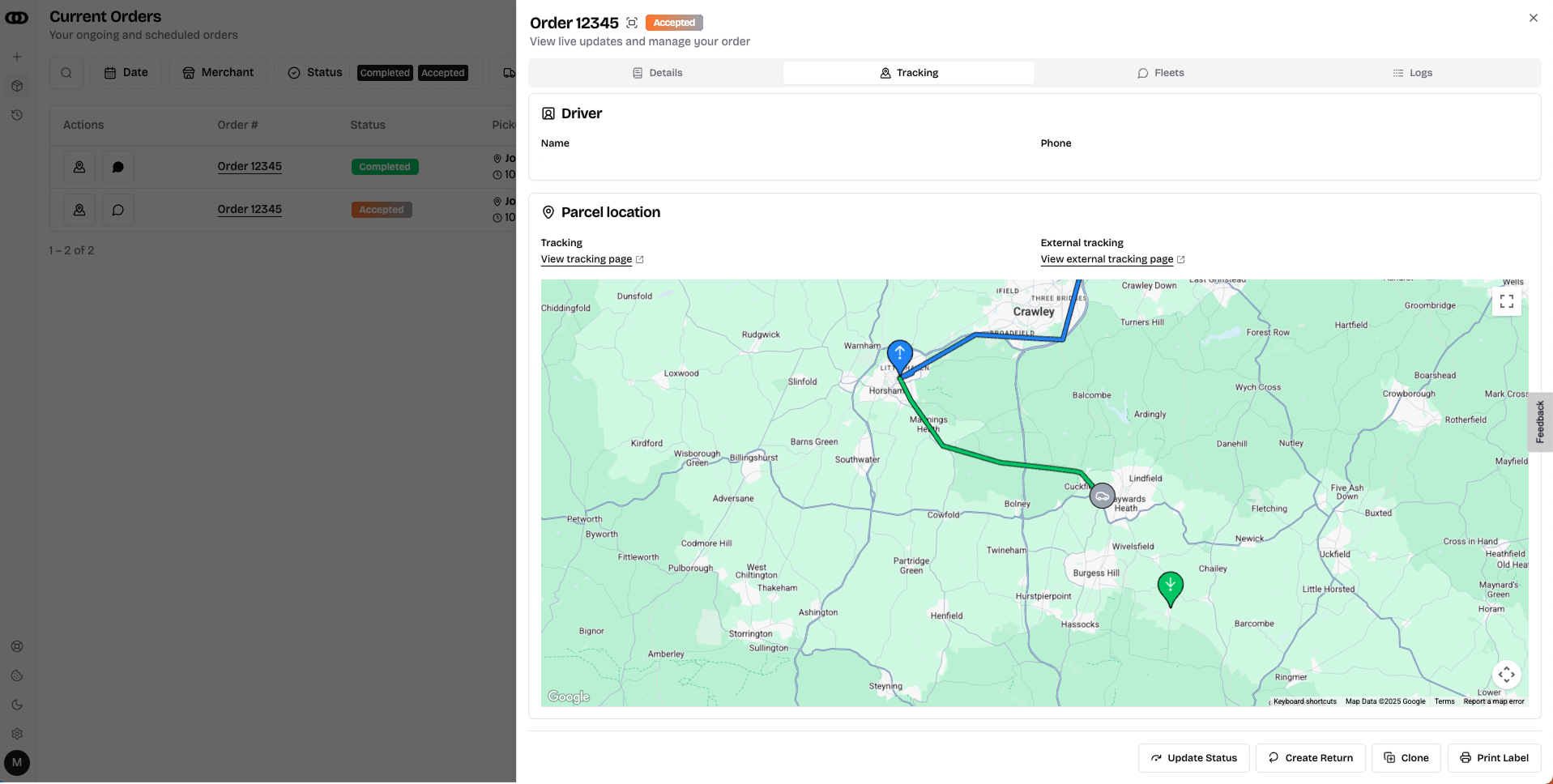
Once a courier is assigned to your order, you can track their location in real time (if the fleet shares live tracking):
- Open the order in your Orkestro Portal.
- Go to the Tracking tab.
- You’ll also find the driver’s phone number there (if available).
Tip: Click the map icon directly from the order list page.
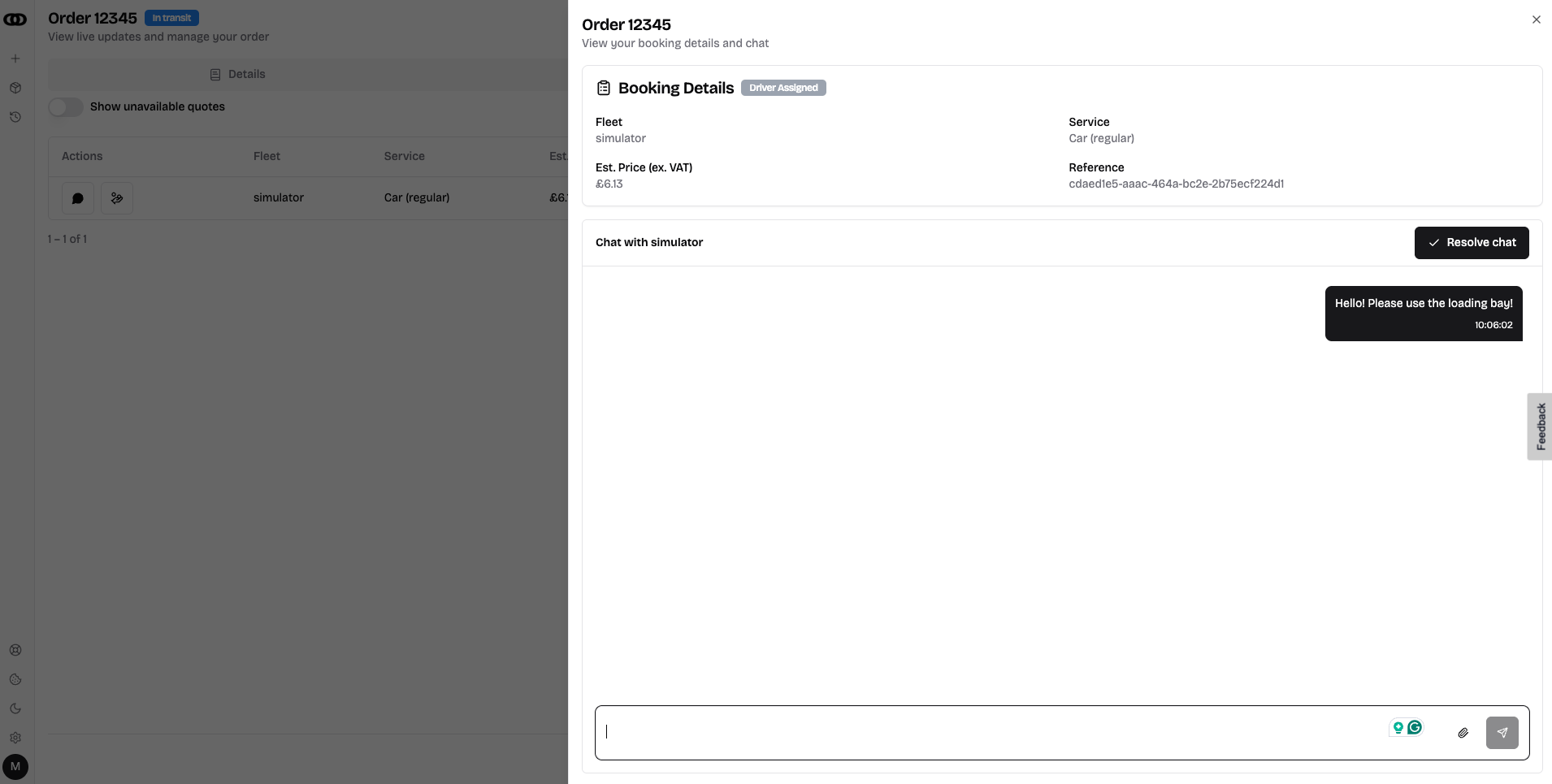
Chat with a courier support
To contact the courier’s support team:
- Open the relevant order.
- Go to the Fleet tab.
- Click the chat icon next to the booking you want to talk about.
Tip: Click the chat icon directly from the order list page.
Request a refund
To request a refund for a specific delivery:
- Open the Orkestro Portal.
- Locate and open the order.
- Go to the Fleets tab.
- Click on the Request Refund icon for the booking you'd like to receive a refund for.
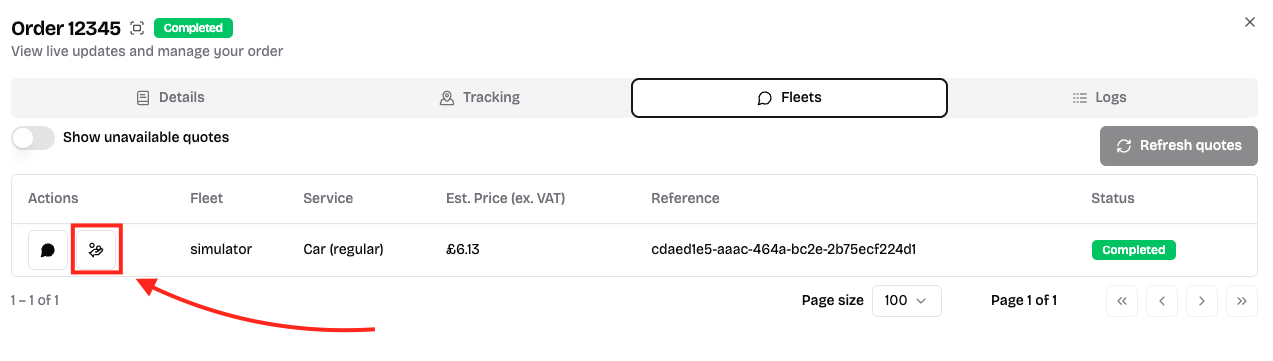
Once a refund request is submitted, you can monitor its status in the dedicated Ticket tab.
Still need help? You can always create a support ticket, and our team will look into it.